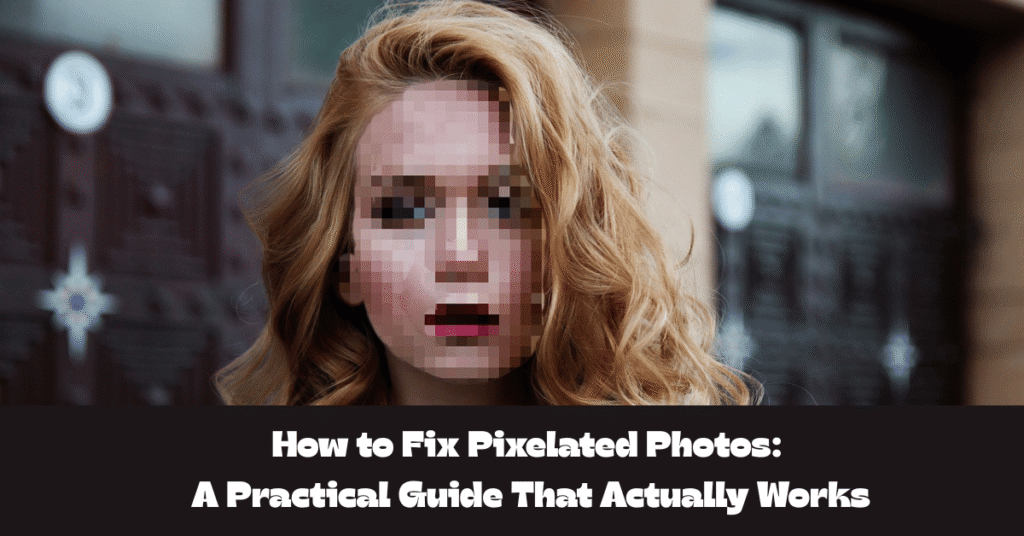

We’ve all been there. You find the perfect photo—maybe it’s an old memory or an image you need for your website—but when you zoom in, it turns into a blocky mess. Pixelated. Blurry. Unusable.
If you’re wondering how to fix pixelated photos, you’re in the right place. In this guide, I’ll walk you through realistic solutions—from simple editing tricks to powerful AI upscaling tools—so you can improve image quality without making things worse.
Let’s break it down step by step.
What Causes Pixelated Photos?
Before learning how to fix pixelated photos, it helps to understand why pixelation happens in the first place.
Pixelation occurs when:
-
An image is stretched beyond its original resolution
-
A low-resolution image is downloaded from social media
-
Heavy compression reduces image quality
-
A small image is enlarged for printing or web use
When you enlarge a small image, software has to “guess” what extra pixels should look like. That’s when you see those square blocks.
Good news? While you can’t magically restore missing detail, you can significantly improve how the image looks.
How to Fix Pixelated Photos (Best Methods)
There isn’t one universal fix. The best method depends on how damaged the image is and what tools you have.
1. Use AI Image Upscaling Tools (Best Overall Solution)
If you’re serious about learning how to fix pixelated photos, AI upscalers are currently the most effective option.
These tools use machine learning to reconstruct lost details intelligently instead of simply stretching pixels.
Popular AI tools include:
-
Adobe Photoshop (Super Resolution)
-
Topaz Gigapixel AI
-
Let’s Enhance (web-based)
-
Fotor AI Image Enhancer
What they do:
-
Increase resolution
-
Sharpen edges
-
Reduce noise
-
Improve texture clarity
Tip: AI upscaling works especially well for portraits and product images.
2. Fix Pixelated Photos in Photoshop (Manual Method)
If you prefer more control, you can manually reduce pixelation in Adobe Photoshop.
Here’s a basic workflow:
Step-by-Step:
-
Open your image.
-
Go to Image > Image Size.
-
Increase resolution gradually (not all at once).
-
Enable “Resample” and choose “Preserve Details 2.0.”
-
Apply noise reduction if necessary.
-
Use:
-
Smart Sharpen
-
Gaussian Blur (lightly!)
-
Reduce Noise filter
-
This method doesn’t recreate lost data, but it smooths harsh edges and reduces blockiness.
Best for:
-
Slight pixelation
-
Web images
-
Thumbnails
3. Fix Pixelated Images for Free (Online Tools)
If you don’t have premium software, try free online photo enhancers.
Search for:
-
“Free AI image upscaler”
-
“Enhance blurry photo online”
These tools:
-
Automatically upscale resolution
-
Improve clarity
-
Remove compression artifacts
Be cautious with privacy if uploading personal photos. Always check the platform’s data policy.
4. Use Mobile Apps to Fix Pixelated Pictures
If you’re editing on your phone, try apps like:
-
Remini
-
PicsArt
-
Snapseed
They offer:
-
AI sharpening
-
Noise reduction
-
Resolution enhancement
Great for social media content or quick fixes.
How to Prevent Pixelation in the Future
Knowing how to fix pixelated photos is helpful—but preventing pixelation is even better.
Here’s how:
-
Always save images in high resolution
-
Avoid repeatedly compressing JPEG files
-
Use PNG for graphics
-
Don’t enlarge small images for print
-
Keep original RAW files
For websites:
-
Upload high-resolution images, then compress properly using tools like TinyPNG
-
Use correct image dimensions before uploading
Internal link suggestion: Link to an article on “Best Image Sizes for Websites” or “How to Compress Images Without Losing Quality.”
Can You Completely Fix a Pixelated Photo?
Here’s the honest answer:
You can improve it significantly—but you can’t fully restore missing detail.
Think of it like zooming into a screenshot. If the data isn’t there, no tool can perfectly recreate it. AI tools come close, but they still “estimate” details.
That’s why choosing the right resolution from the start matters.
Quick Comparison: Best Ways to Fix Pixelated Photos
| Method | Best For | Difficulty | Quality Improvement |
|---|---|---|---|
| AI Upscaling Tools | Heavy pixelation | Easy | Excellent |
| Photoshop Manual Fix | Moderate pixelation | Medium | Good |
| Free Online Tools | Light fixes | Very Easy | Moderate |
| Mobile Apps | Social media photos | Easy | Moderate |
FAQs About How to Fix Pixelated Photos
1. Can you unpixelate a photo completely?
No. You can improve it using AI upscaling and sharpening, but completely restoring lost pixels is impossible.
2. What is the best app to fix pixelated photos?
AI-based tools like Photoshop Super Resolution and Topaz Gigapixel AI provide the best results. For mobile users, Remini is a strong option.
3. Why do my photos become pixelated when I upload them?
Most social media platforms compress images to save space. This reduces resolution and causes pixelation.
4. Does increasing resolution fix pixelation?
Not by itself. Simply increasing image size stretches pixels. AI-based resampling is required for meaningful improvement.
5. How do professionals fix pixelated images?
Professionals combine AI upscaling, manual retouching, noise reduction, and sharpening techniques for best results.
Final Thoughts: The Smart Way to Fix Pixelated Photos
If you’ve been searching for how to fix pixelated photos, the key takeaway is this: use AI tools whenever possible. They offer the most dramatic improvements with minimal effort.
For light fixes, manual sharpening and noise reduction can help. But for serious quality upgrades, AI upscaling is the gold standard in 2026.