
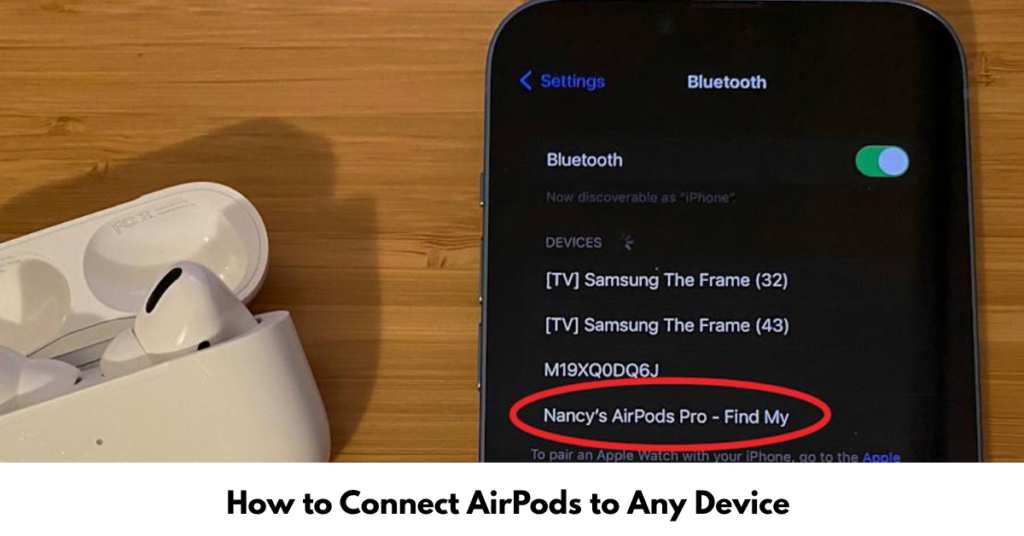

Just unboxed your AirPods—or trying to reconnect them to a new device—and nothing’s happening? Don’t worry, it’s a common hiccup. Knowing how to connect AirPods properly can save you time, frustration, and a few unnecessary Google searches.
In this guide, we’ll walk through how to connect AirPods to almost any device—iPhone, laptop, MacBook, PC, Android, and more. The steps are simple, beginner-friendly, and explained in plain English.
Before You Start: Quick Things to Check
Before pairing your AirPods, make sure:
-
Your AirPods are charged.
-
Bluetooth is turned on.
-
The device is within range.
-
Your AirPods are inside their charging case
These basics prevent most connection issues right away.
How to Connect AirPods to iPhone
This is the easiest and fastest setup.
Steps to connect AirPods to an iPhone
-
Unlock your iPhone
-
Open the AirPods case near your phone.
-
A pop-up appears—tap Connect.
-
Follow the on-screen instructions.
That’s it. Your AirPods will automatically pair with your iPhone every time after.
If you use iCloud, your AirPods will also sync with your other Apple devices.
How to Connect AirPods to a MacBook or Mac
Whether it’s a MacBook Air, Pro, or iMac, the steps are nearly identical.
How to connect AirPods to a Mac or MacBook
-
Click the Apple menu → System Settings.
-
Go to Bluetooth and turn it on.
-
Open the AirPods case.
-
Press and hold the button on the case until the light flashes white
-
Select AirPods from the list and click Connect
Once paired, your AirPods should reconnect automatically.
How to Connect AirPods to a Laptop or Computer
AirPods work with most laptops and computers using Bluetooth.
How to connect AirPods to a laptop (Windows or Mac)
-
Open Bluetooth settings
-
Put AirPods in pairing mode.
-
Select AirPods from the available devices.
This works for both macOS and Windows systems.
How to Connect AirPods to PC (Windows 10 & 11)
Yes—AirPods work with Windows PCs too.
How to connect AirPods to a PC
-
Open Settings → Bluetooth & devices
-
Turn Bluetooth ON
-
Click Add device → Bluetooth.
-
Put AirPods in pairing mode.
-
Select AirPods when they appear.
Once connected, you can use them for audio and calls.
How to Connect AirPods to a Chromebook
Chromebooks support Bluetooth audio devices, including AirPods.
How to set up AirPods to Chromebook
-
Click the time (bottom-right corner)
-
Open Bluetooth settings
-
Turn Bluetooth ON
-
Put AirPods in pairing mode.
-
Select AirPods from the list.
Your Chromebook will remember them for future use.
How to Connect AirPods to Android
AirPods aren’t Apple-exclusive—you can use them with Android too.
How to connect AirPods to Android
-
Open Settings → Bluetooth
-
Turn Bluetooth ON
-
Put AirPods in pairing mode.
-
Tap AirPods from available devices.
You’ll get solid audio, though features like Siri won’t work.
How to Connect AirPods 4 to a Laptop
If you’re using AirPods 4, the process is the same as other models.
Steps
-
Open laptop Bluetooth settings
-
Hold the AirPods case button until the light flashes.
-
Select AirPods from the device list.
Compatibility depends on Bluetooth version—not the AirPods model.
Troubleshooting: If Your AirPods Won’t Set Up
Try these quick fixes:
-
Restart Bluetooth
-
Restart your device
-
Reset AirPods (hold the case button for 15 seconds)
-
Update your device software.
Most connection issues are temporary and easy to fix.
FAQs: How to link AirPods
Why won’t my AirPods link to my device?
Low battery, outdated software, or Bluetooth conflicts are the usual reasons.
Can I pair AirPods to multiple devices?
Yes, but they connect to one device at a time.
Do AirPods work with non-Apple devices?
Absolutely. They work with Android, Windows PCs, and Chromebooks via Bluetooth.
How do I put AirPods in pairing mode?
Place them in the case, open the lid, and hold the back button until the light flashes white.
Can AirPods set up automatically?
Yes—especially on Apple devices using the same iCloud account.
Conclusion: Connecting AirPods Is Easier Than You Think
Learning how to pair AirPods doesn’t need to be complicated. Whether you’re using an iPhone, MacBook, PC, Android, or Chromebook, the steps are quick once you know where to look.
If you’re setting up a new device or switching between platforms, bookmark this guide for later—or explore our related tutorials on fixing Bluetooth issues and choosing the right AirPods model.