
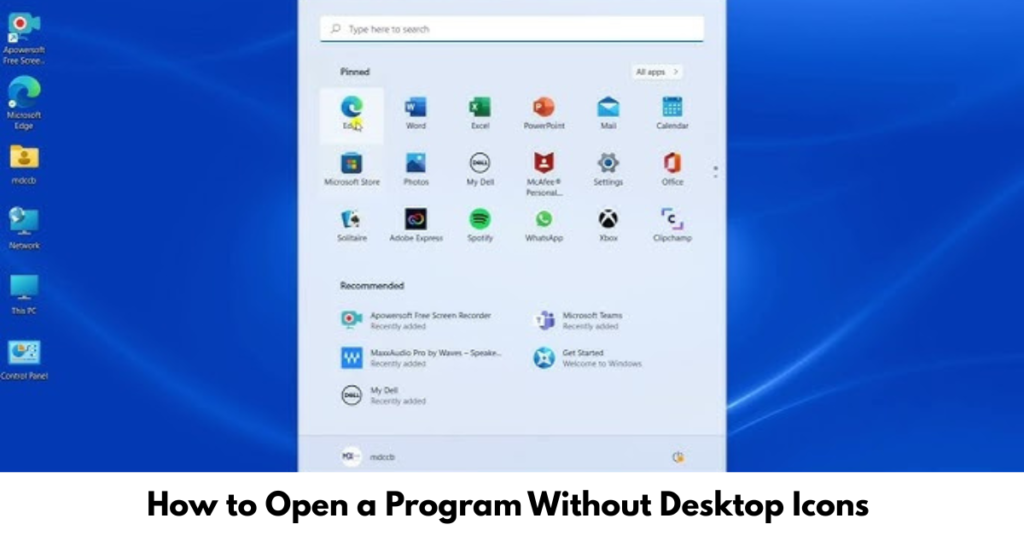

You turn on your computer, look at the desktop… and nothing’s there. No shortcuts. No icons. Just a blank screen. If you’re wondering how do you open a program when there are no icons on the desktop, you’re not alone—and the good news is, it’s easier than you think.
This situation can happen due to system updates, accidental changes, or user settings. In this guide, we’ll walk through simple, reliable ways to open programs without desktop icons, even if you’re not very tech-savvy. Let’s get your work moving again.
How Do You Open a Program When There Are No Icons on the Desktop?
Even without desktop shortcuts, your computer still has multiple built-in ways to access programs. You just need to know where to look.
Below are the most effective methods, starting with the easiest.
Use the Start Menu Search (Fastest Method)
One of the quickest answers to how do you open a program when there are no icons on the desktop is using the Start Menu.
Steps:
-
Press the Windows key on your keyboard
-
Start typing the program name (e.g., Word, Chrome, Photoshop)
-
Click the program when it appears in the search results
This works even if the program has no shortcut anywhere.
LSI keywords used: open apps without icons, Windows search tool
Open Programs Using the Run Command
The Run dialog box is a powerful tool many people forget about.
How to use it:
-
Press Windows + R
-
Type the program name
-
chrome→ Google Chrome -
winword→ Microsoft Word -
excel→ Microsoft Excel
-
-
Press Enter
This method is especially useful if you already know the program’s executable name.
Open Programs from File Explorer
If you’re asking how do you open a program when there are no icons on the desktop, File Explorer is a reliable backup.
Steps:
-
Press Windows + E
-
Go to:
-
C:\Program Files -
or
C:\Program Files (x86)
-
-
Find the program folder
-
Double-click the
.exefile
You can also right-click the file and choose “Create shortcut” to restore a desktop icon.
Use Task Manager to Launch Programs
Task Manager isn’t just for closing frozen apps—it can also open them.
Steps:
-
Press Ctrl + Shift + Esc
-
Click File → Run new task
-
Type the program name
-
Click OK
This works even when the desktop or Start Menu isn’t responding properly.
Check the All Apps List in Start Menu
Sometimes icons disappear, but apps are still listed.
Steps:
-
Press the Windows key
-
Click All Apps
-
Scroll through the list
-
Click the program you want to open
This is helpful for finding apps you don’t use often.
Why Desktop Icons Disappear in the First Place
Understanding the cause helps prevent it from happening again.
Common reasons include:
-
Desktop icons are hidden accidentally
-
System or Windows updates
-
User profile changes
-
Malware or corrupted system files
You can right-click on the desktop → View → Show desktop icons to restore them.
FAQs
How do you open a program when there are no icons on the desktop in Windows 10 or 11?
You can use the Start Menu search, Run command, File Explorer, or Task Manager. Desktop icons are optional—programs remain installed and accessible.
Can I restore my desktop icons?
Yes. Right-click the desktop, select View, and make sure Show desktop icons is checked.
What if the Start Menu is not working either?
Use Task Manager → Run new task or open programs directly from File Explorer.
Are my programs deleted if icons are missing?
No. Missing icons usually mean hidden or removed shortcuts, not deleted software.
Conclusion
So, how do you open a program when there are no icons on the desktop? Now you know—there are multiple simple and safe ways to do it. From the Start Menu search to the Run command and File Explorer, your programs are never truly out of reach.
If this guide helped, consider exploring related articles on:
-
Fixing missing desktop icons
-
Windows performance troubleshooting
-
Creating custom shortcuts for faster access
A blank desktop doesn’t mean a broken system—it just means you know a few smart shortcuts now